Class Portal User Guide Open Class Portal

Class Portal User Guide
Everything in the app, one chapter each. New here? The Quick start gets you signed in and set up in five minutes; this guide is for everything after that.

Getting started

Three things before anything else, all covered step by step in the Quick start:

  1. Activate your account with your activation code and the email address and phone number on the roster. The code works once. After that you sign in with your email address and a password of your choosing.
  2. Add Class Portal to your Home Screen. It runs full screen with its own icon, stays signed in, and on iPhone it is the only way notifications can reach you.
  3. Turn on notifications, from the Home Screen app: your initials, then Settings, then Turn on.

Note: There is no password reset in the app. If you forget yours or a code is refused, contact an admin.

9:41
The home screen

The home screen

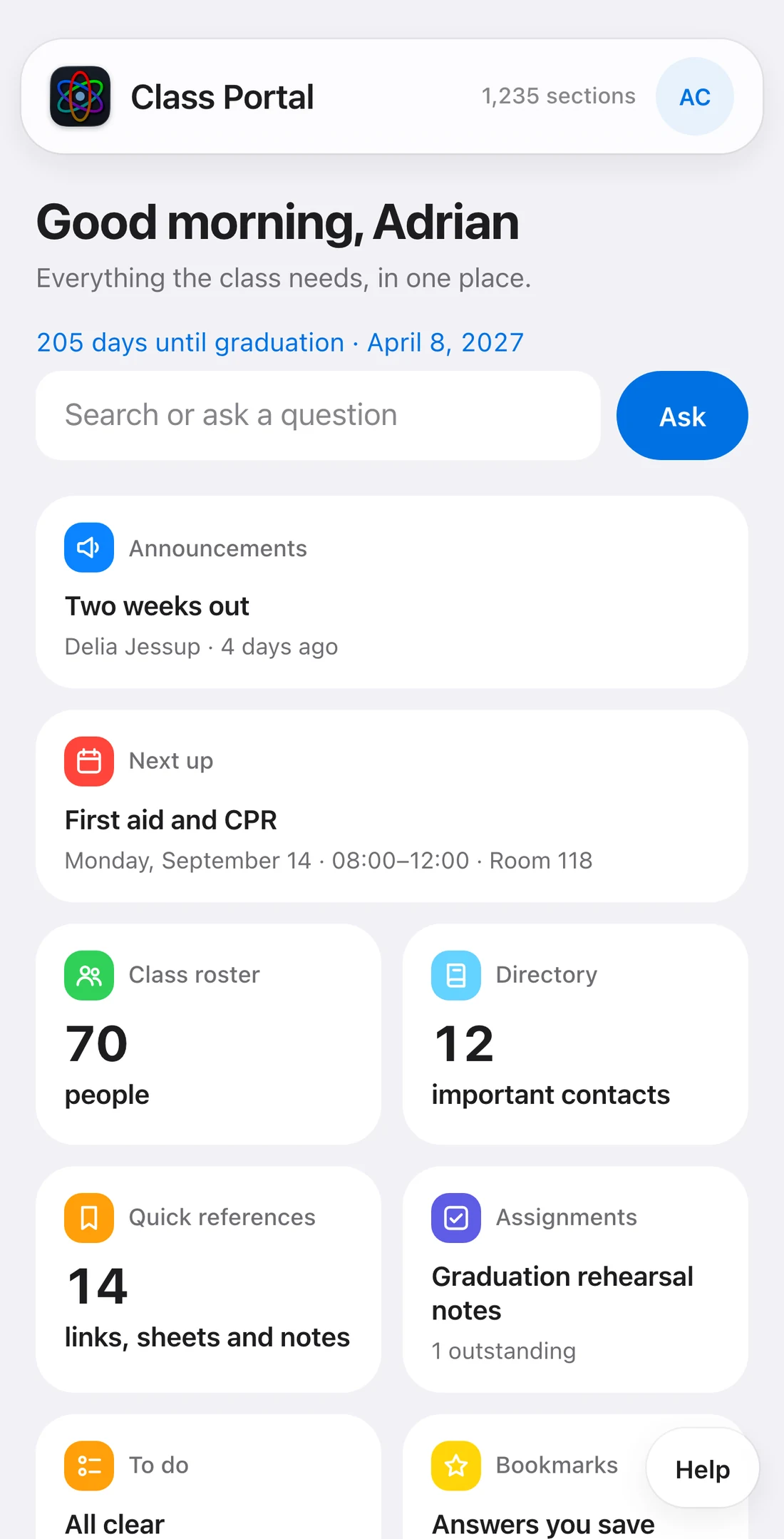
Everything starts here. The search bar is at the top; below it, one tile for each part of the app, each showing the thing you most likely want to know without opening it: the latest post, the next event, how many people are on the roster, what is due.

  • Days until graduation sits under the greeting.
  • Your initials (or your photo) in the top-right corner open your account.
  • The Class Portal name in the bar takes you home from anywhere; so does Home at the top of every section.
  • Help floats bottom-right on every screen.
  • Swipe back, or use your phone's back gesture, to return to the previous screen.
9:41
The announcements board

Announcements

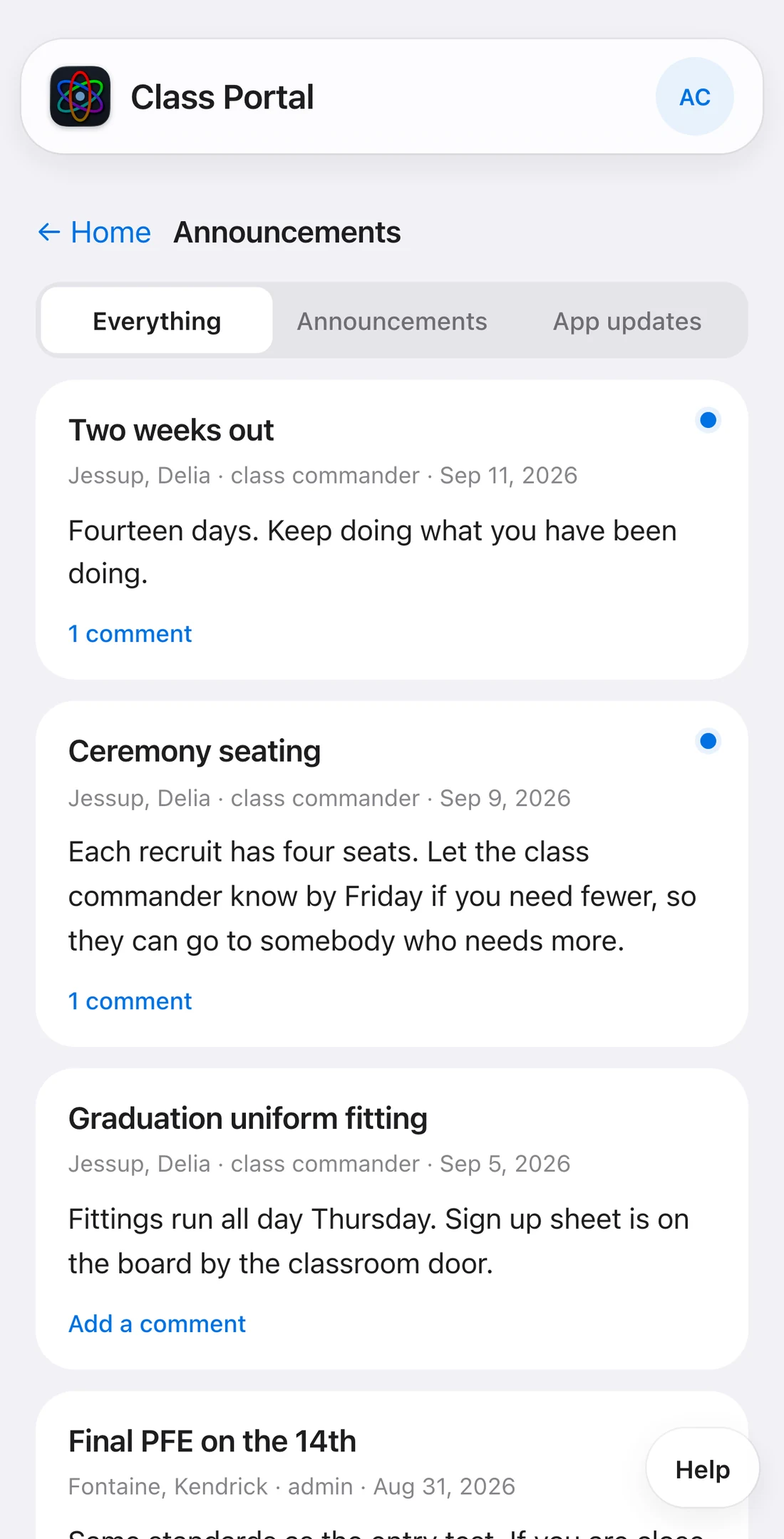
The class board. Check it every morning, even with notifications on.

  • A blue dot on a post means you have not seen it yet; the Announcements tile on the home screen counts them.
  • Everything, Announcements and App updates at the top filter the board. App updates are the release notes for each new version.
  • Posts from the class commander are marked and float to the top for a day; a pinned post stays at the top until it is unpinned.
  • Tap Add a comment under a post to reply. Type @ and a name to mention someone from the roster; they are notified.
  • Photos attached to a post open full size when tapped.

Who can post is set by the administrator. Everyone can comment.

9:41
The calendar in day view

Calendar

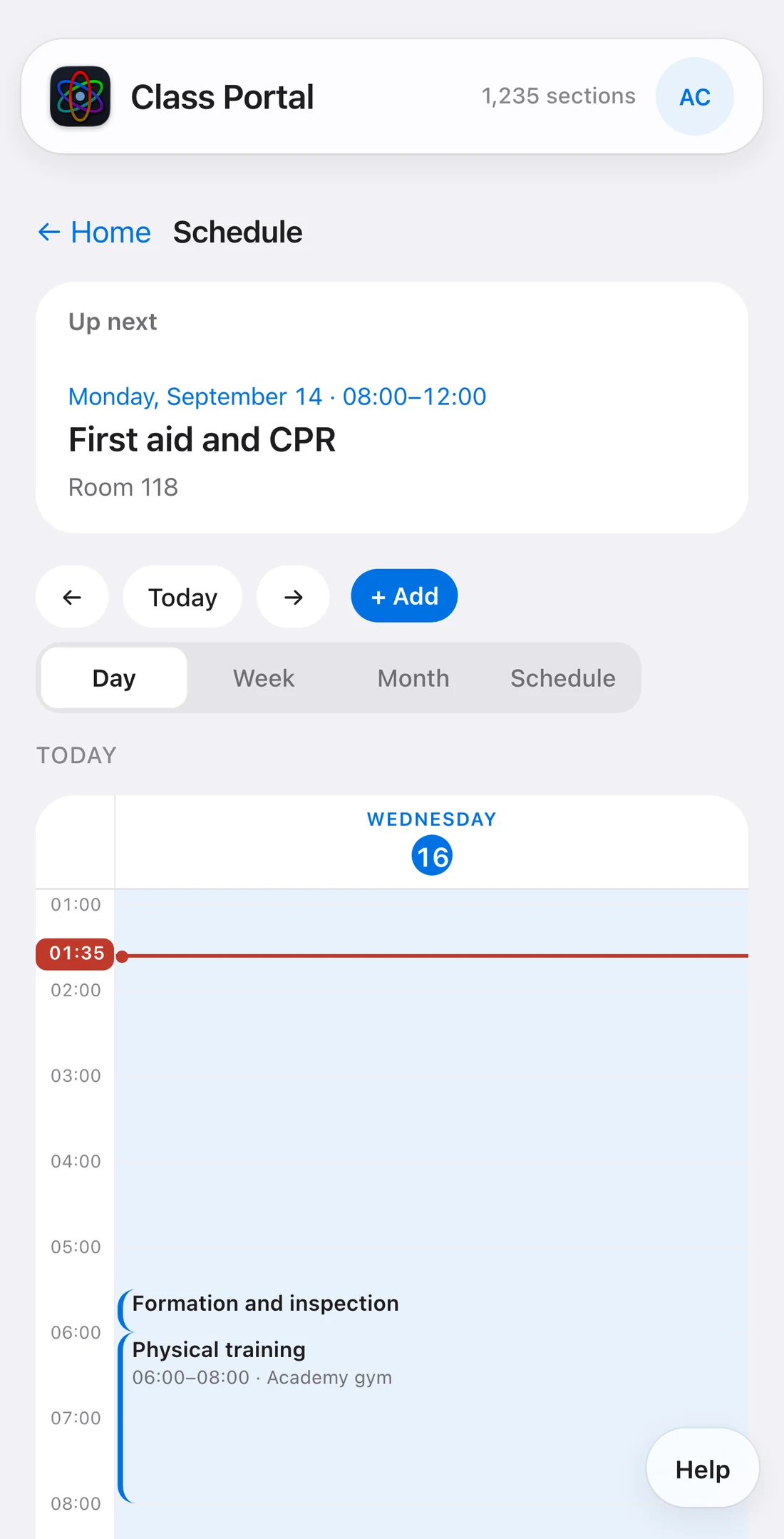
Every hour of the academy on a grid. Open it from Next up on the home screen.

  • Up next at the top always shows the single next event, whatever you are looking at below.
  • Day, Week and Month views, and Schedule as a plain list. Use the arrows to move, Today to come back.
  • Entries are sized by their length; things that overlap sit side by side; a line marks right now.
  • Every heading carries the academy day number, so "day 47" means the same thing to everyone.
  • Assignments with a due date appear on the grid too.

Put it in your phone's calendar

  1. Scroll to the bottom and tap Add to your preferred calendar.
  2. On iPhone, tap Subscribe and confirm. On Android, the link is copied: in Google Calendar, add it under Other calendars › From URL.

The academy's schedule then updates itself in your calendar app. The link is private to you; do not forward it. If it ever leaks, replace it under your account, Settings.

9:41
The To do list

Assignments and To do

Assignments

Work the whole class owes: set by staff, with a due date, shown on the Assignments tile, in the calendar, and in your To do list.

  • Tap the circle beside an assignment to mark it done. That is your own tick; it strikes the item through for you and takes it off your tile, and nobody else sees it.
  • Tap again to undo.

To do

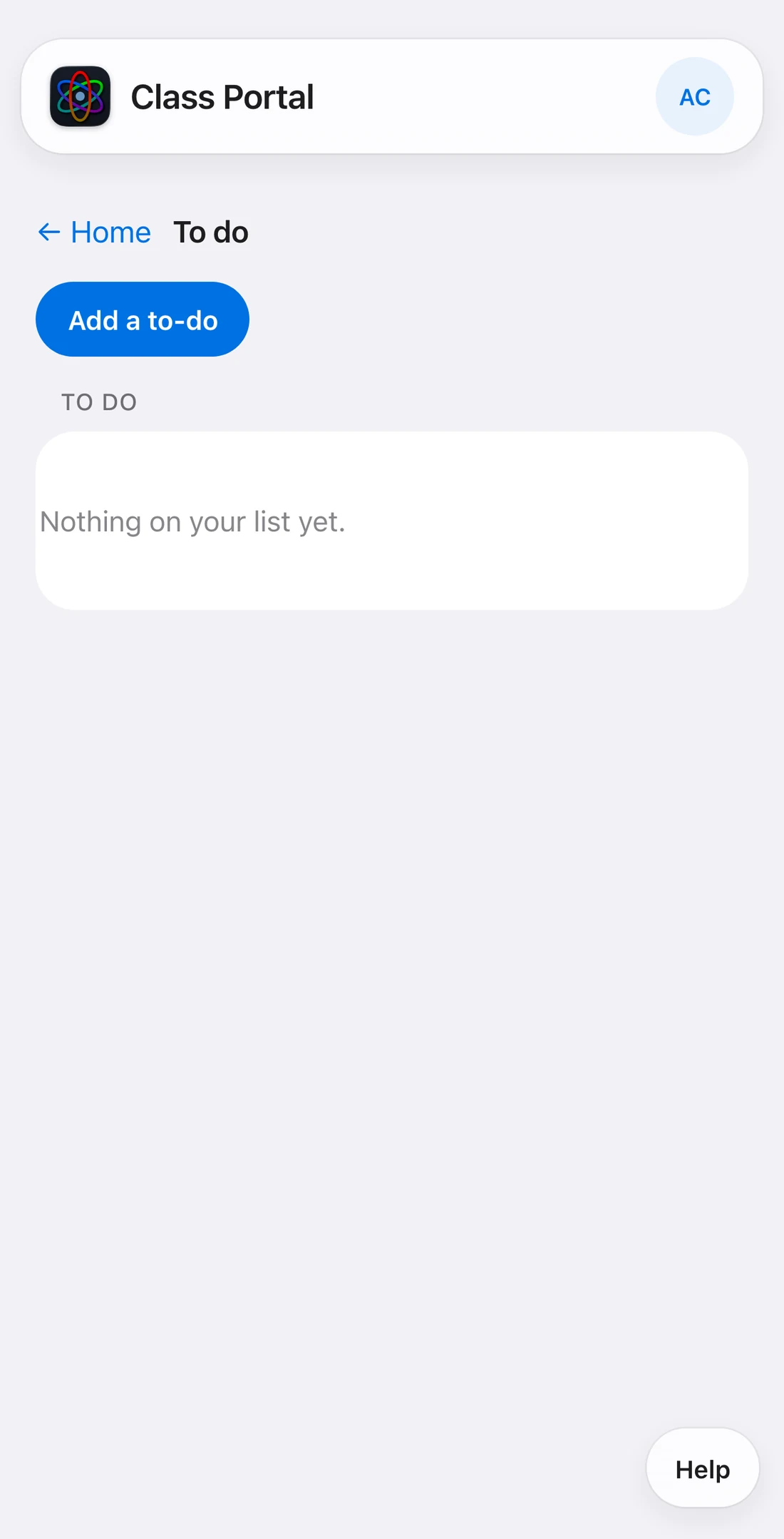
Your own list, alongside the assignments. Tap Add a to-do, give it a title and, if you like, a due date.

  • For you is the default: private to your account.
  • Staff can add items for Everyone or for particular people; those appear on the lists of the people named, tagged accordingly.
  • Each account ticks its own copy. Who has finished a class-wide item is not shown to anyone.
9:41
The class roster

Class roster

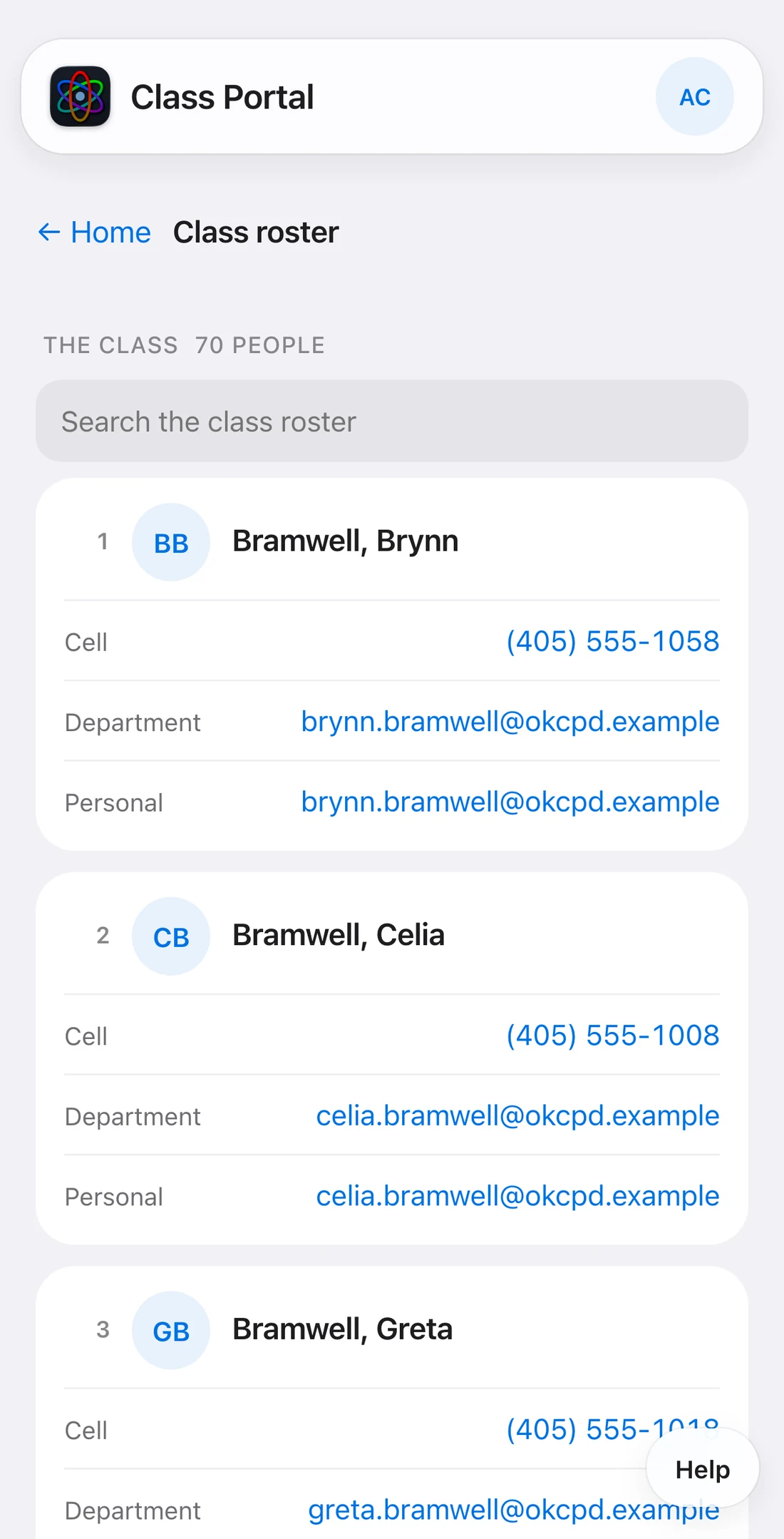
Everyone in the class, numbered, with a search box at the top. Tap a phone number to call it, an email address to write.

  • Each card shows the person's cell, department and personal email, plus anything they have chosen to add.
  • The class commander badge follows whoever holds the role.
  • Not signed up yet means the person has not activated their account.

Your card

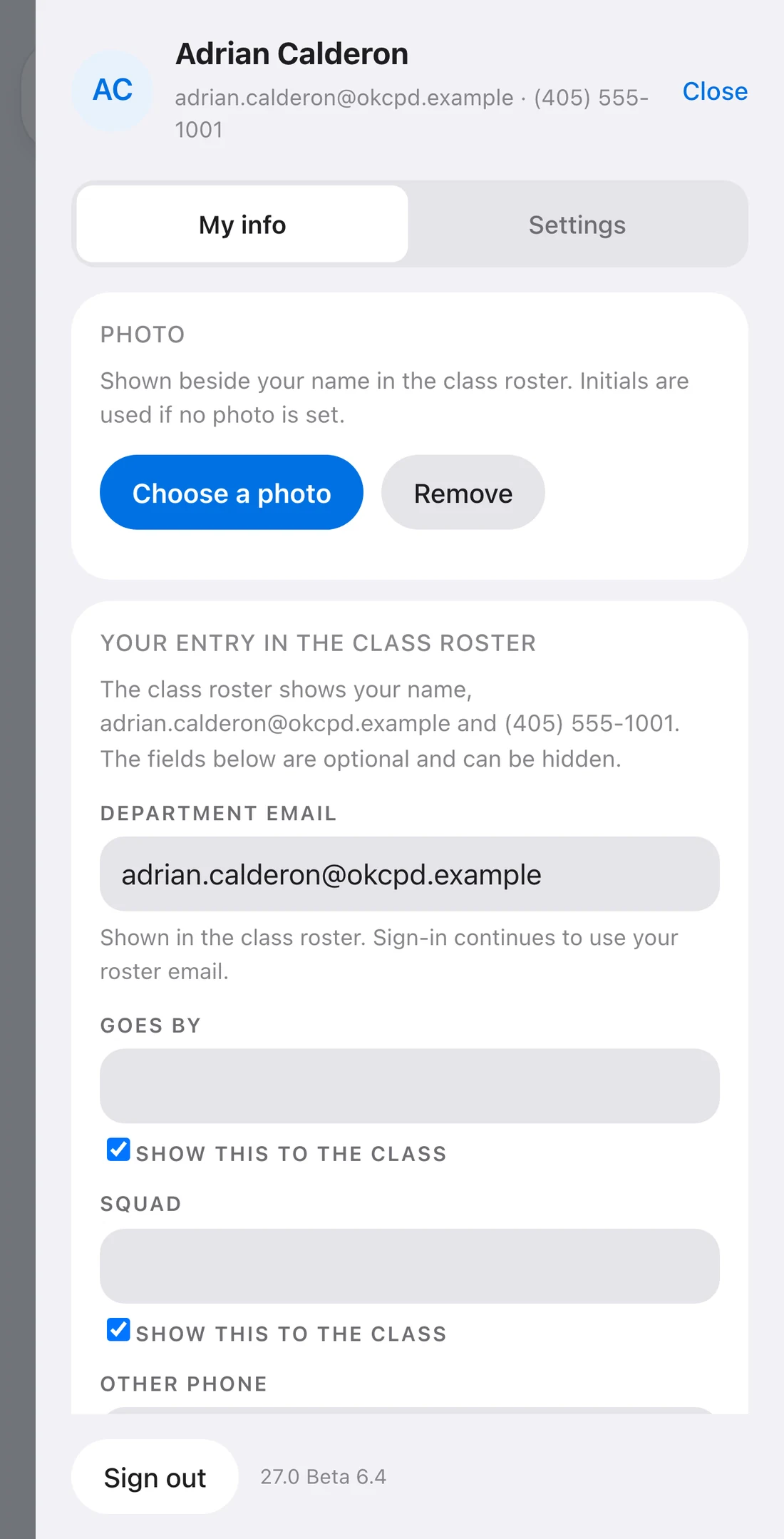
Tap your initials, then My info.

  • Photo. Choose one, position it in the circle, save. Initials are used until you do.
  • Department email. Shown on your card; signing in still uses your roster email.
  • The optional fields — goes by, squad, other phone, where you live, emergency contact, prior service, anything else. Each has its own Show this to the class switch. Unticked, only staff can see it. The switch is enforced by the server, not just hidden on screen.

Note: Your name, roster email and phone number are shown by default, because the roster already circulates inside the class. If you want one of them hidden, ask an admin.

9:41
The directory

Directory

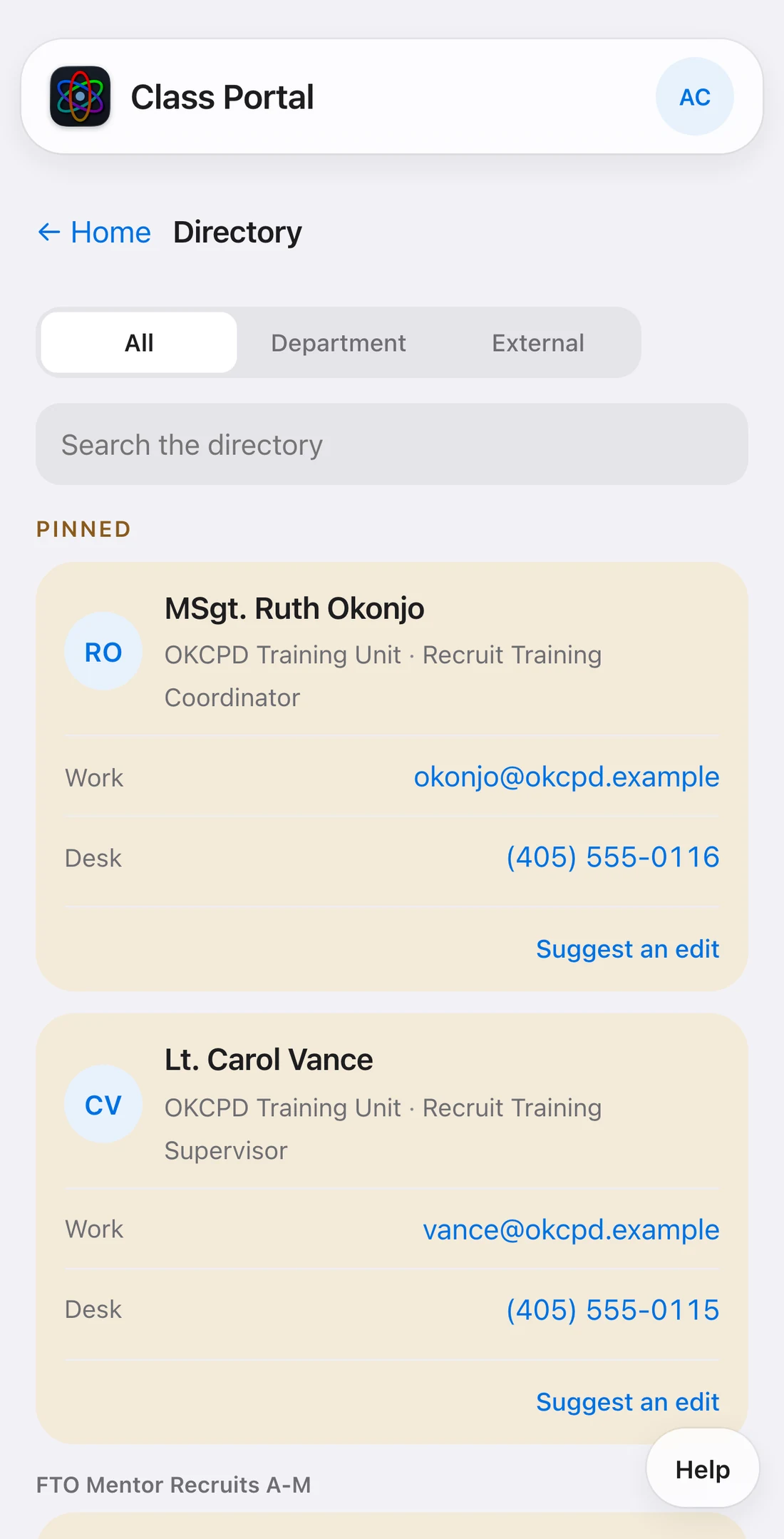
Everyone you will need outside the class: instructors, mentors, the training unit, agencies and offices. Grouped by role, ordered by name, with the most-used contacts pinned at the top.

  • All, Department and External filter the list; the search box finds a name, a unit or a title.
  • Tap a number to call, an email address to write.
  • Something wrong or missing? Suggest an edit on a card, or Suggest a contact at the bottom. Your suggestion goes to an administrator, who approves it with one tap; nothing appears until then.
9:41
Quick references

Quick references

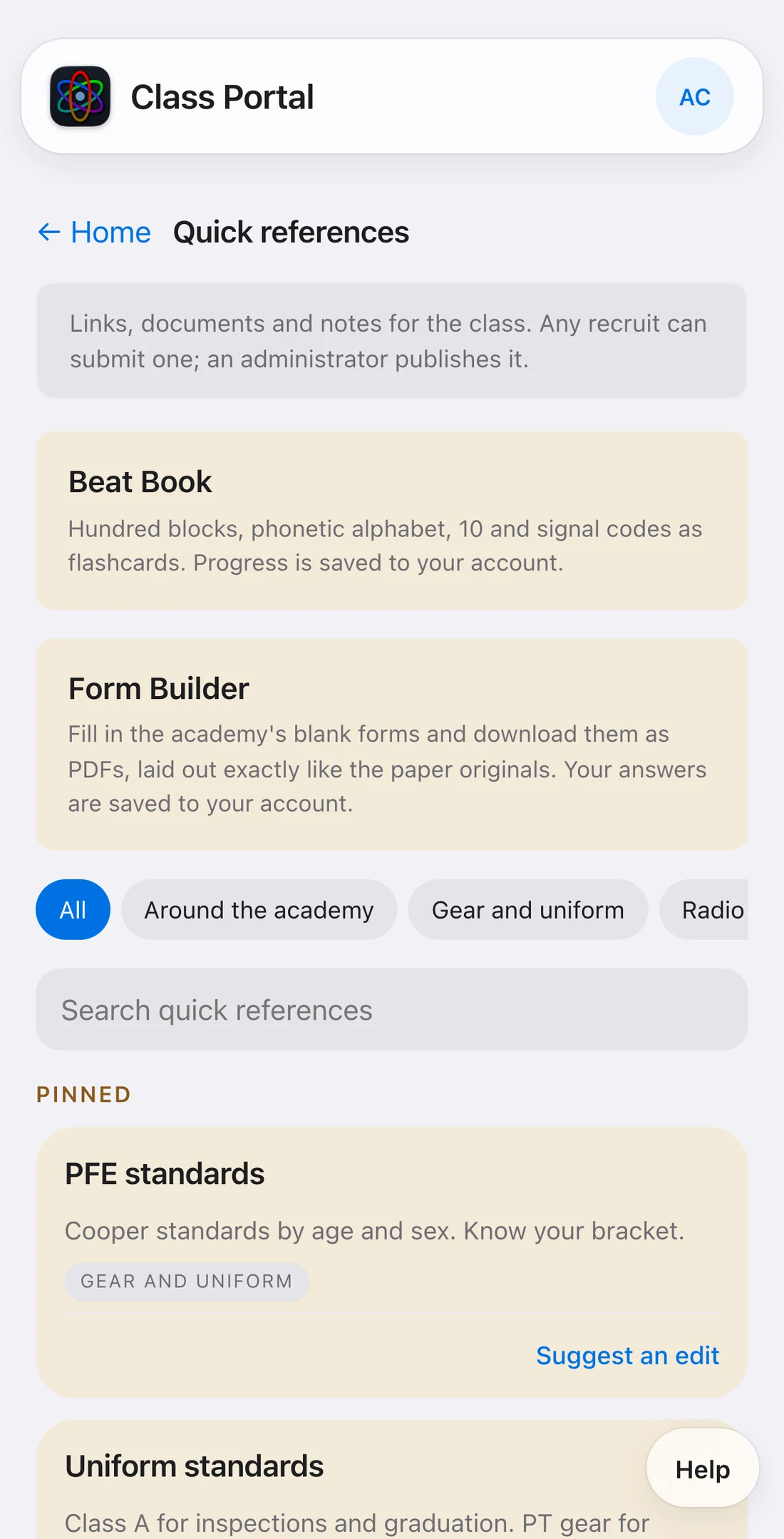
Links, documents and notes the class keeps reaching for: fitness standards, uniform standards, sign-up sheets, maps. Tagged, searchable, the pinned ones on top.

  • The tag chips (Around the academy, Gear and uniform and so on) narrow the list; the search box finds anything.
  • A reference with a file attached opens it in place.
  • Any recruit can Suggest a reference; an administrator publishes it.
  • Beat Book and Form Builder live at the top of this screen, and each has a chapter below.
9:41
A Beat Book card, revealed

Beat Book

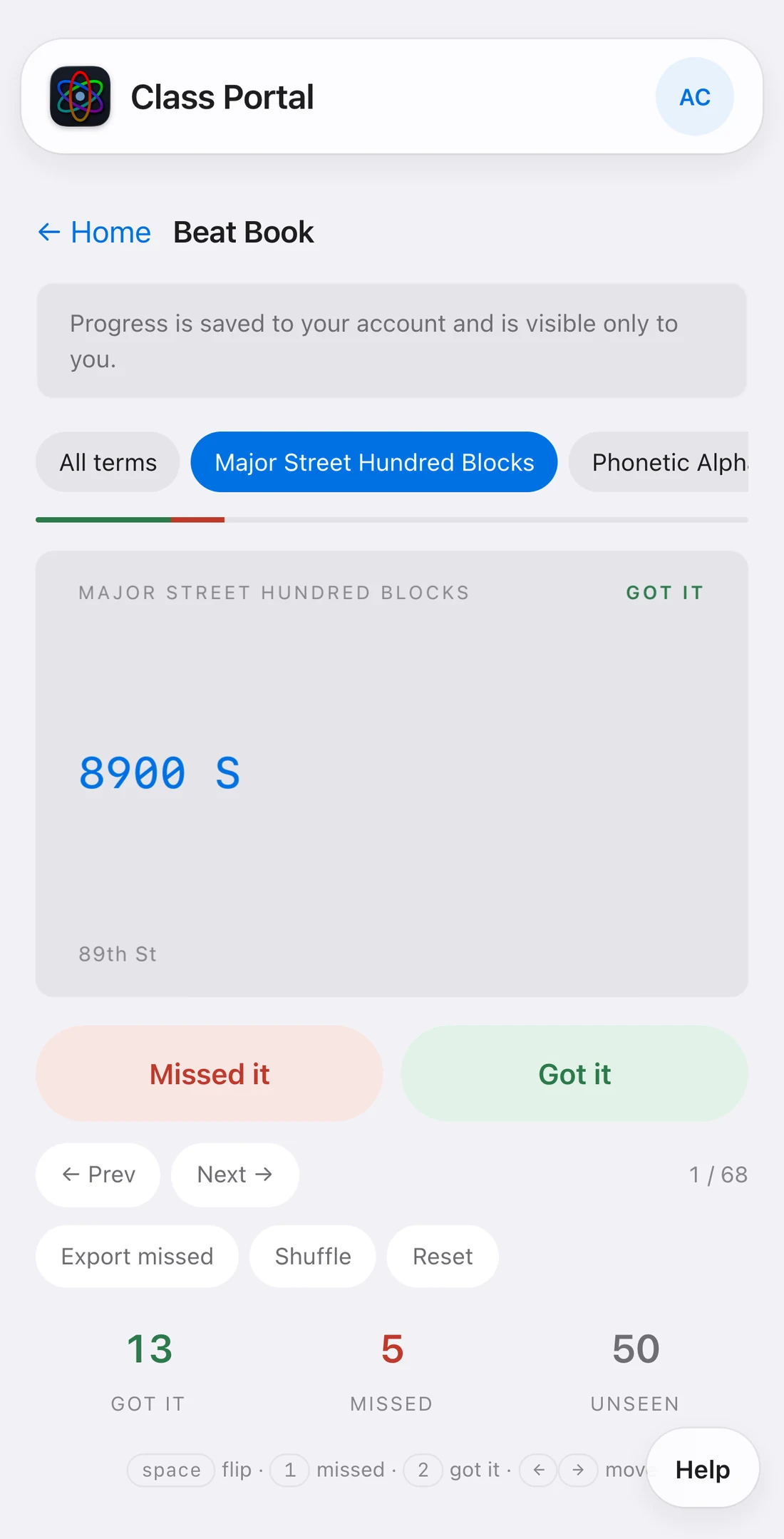
Flash cards for the things you have to know cold: the hundred blocks of the major streets, the phonetic alphabet, ten codes and signal codes. Every card is checked against the official pages.

  1. Pick a set at the top, or All terms.
  2. Read the front, decide, then tap the card to reveal the answer.
  3. Tap Got it or Missed it. The next card comes up.
  • Missed only appears once you have missed something: drill just those until they are all Got it.
  • Shuffle reorders the deck; Reset clears your marks for the set; Export missed gives you the list.
  • At the end of a deck a summary shows your score and offers to shuffle and go again, drill the misses, or keep reviewing.
  • On a keyboard: space flips, 1 missed, 2 got it, arrows move.

Note: Progress is saved to your account, so a new phone costs you nothing, and it is visible only to you. Not the class, not the admins.

9:41
Form Builder

Form Builder

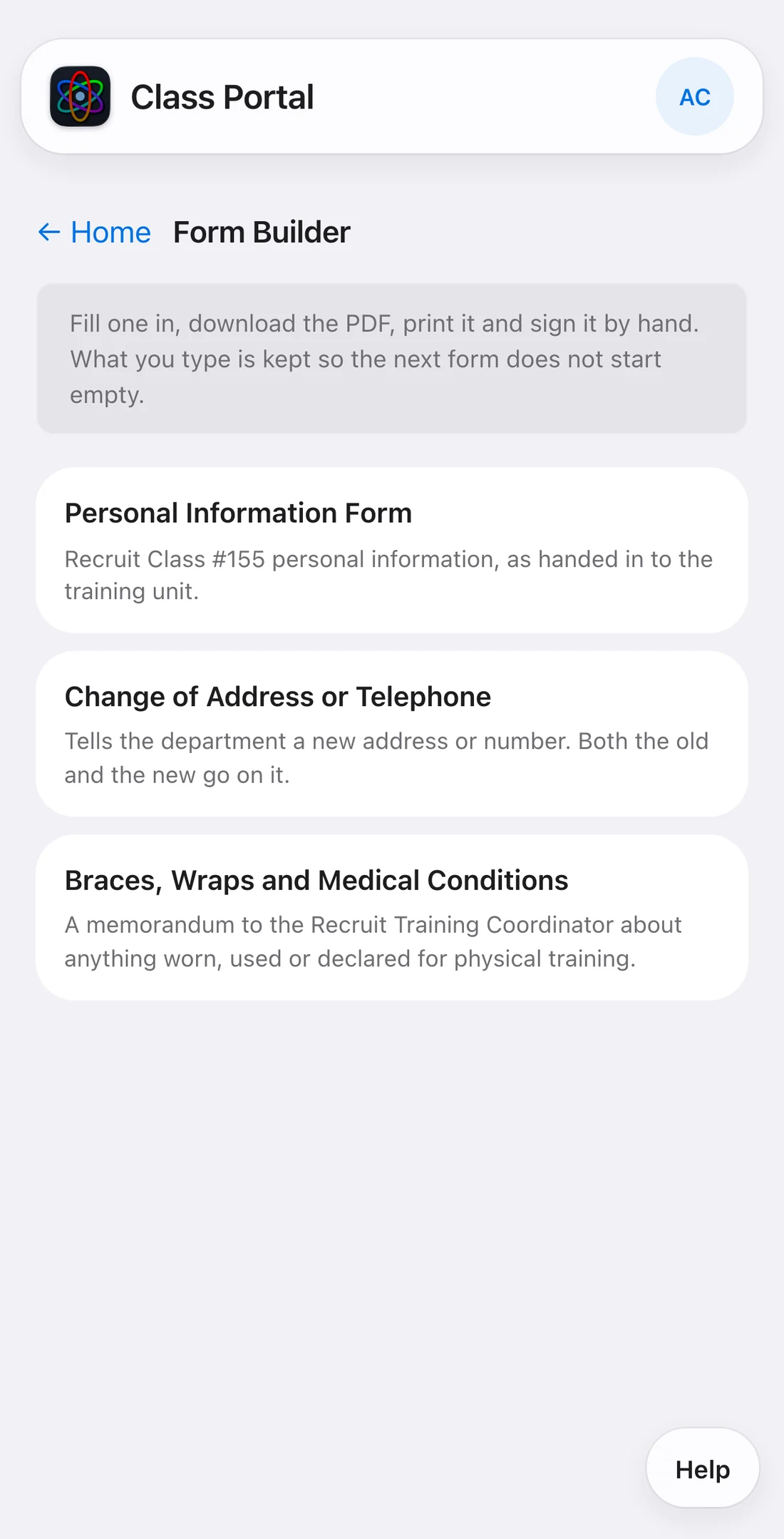
The academy's blank forms, filled in on your phone and stamped onto the original PDF, laid out exactly like the paper version. Download it, print it, sign it by hand.

  1. Tap a form.
  2. Fill in the fields. Your name and details from the roster are already there.
  3. Tap Download the PDF, or Save without downloading to come back later.
  • What you type is kept to your account, so the next form does not start empty. Saved forms are listed under Your saved forms.
  • Fields marked not saved — date of birth, Social Security number, driver's licence number — go onto the PDF and nowhere else. Reopening the form asks for them again. This is enforced on the server as well as in the app.

Seating chart

The current seating chart, one tap from the home screen, with the date it was posted. Tap it to enlarge; the original file is always behind it. When a new chart is posted, the tile and the board say so.

9:41
Source material

Source material

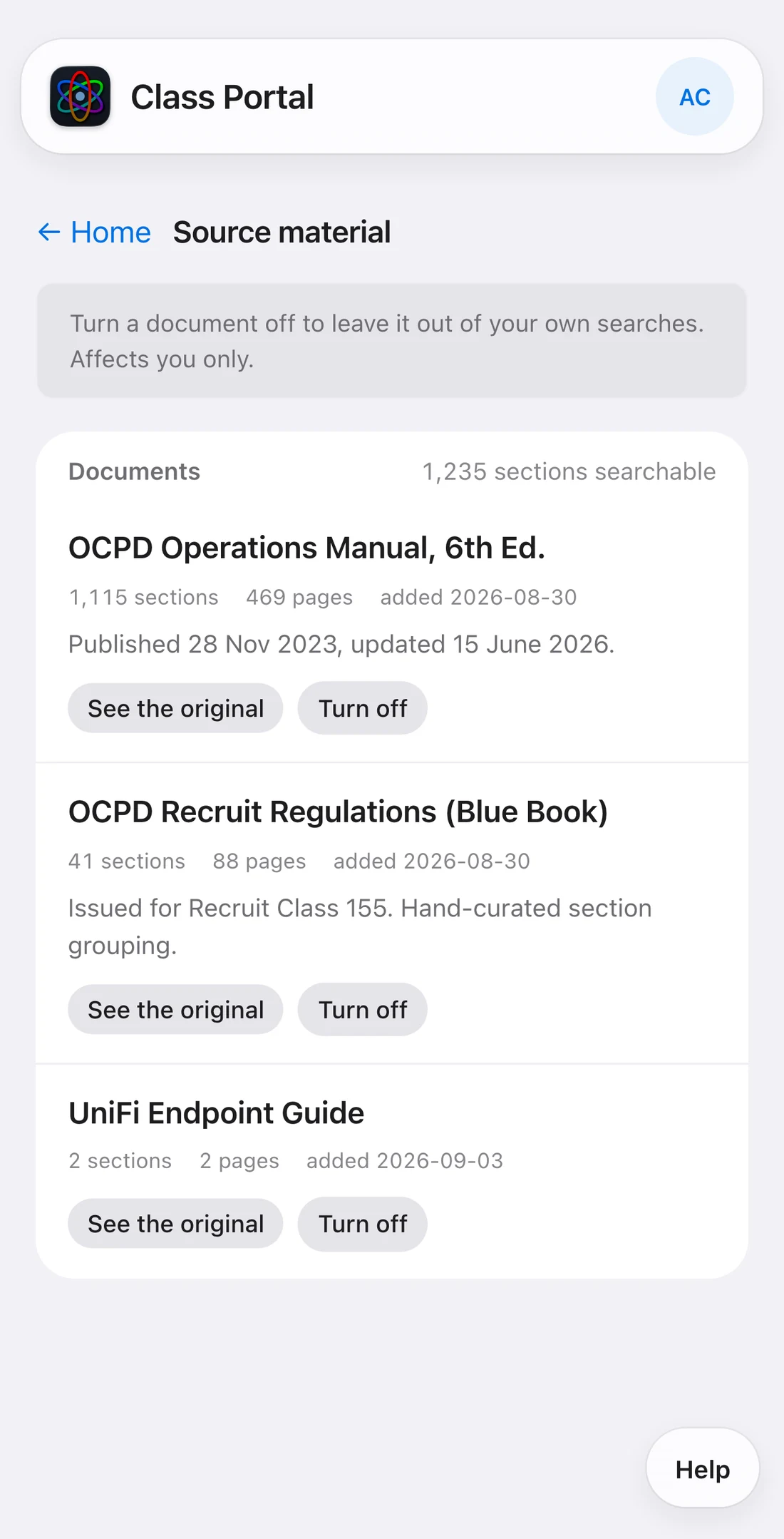
Every manual and handout loaded into the app, with how many sections and pages each contributes to search.

  • See the original opens the file itself, in a panel over the app, with a Close button.
  • From a browser tab, Open in browser opens it in a new tab. From the Home Screen app, that button is Share instead: the system sheet, with Save to Files, Open in Safari and the rest.
  • Turn off a document to leave it out of your own searches; Turn on brings it back. It affects only you.
9:41
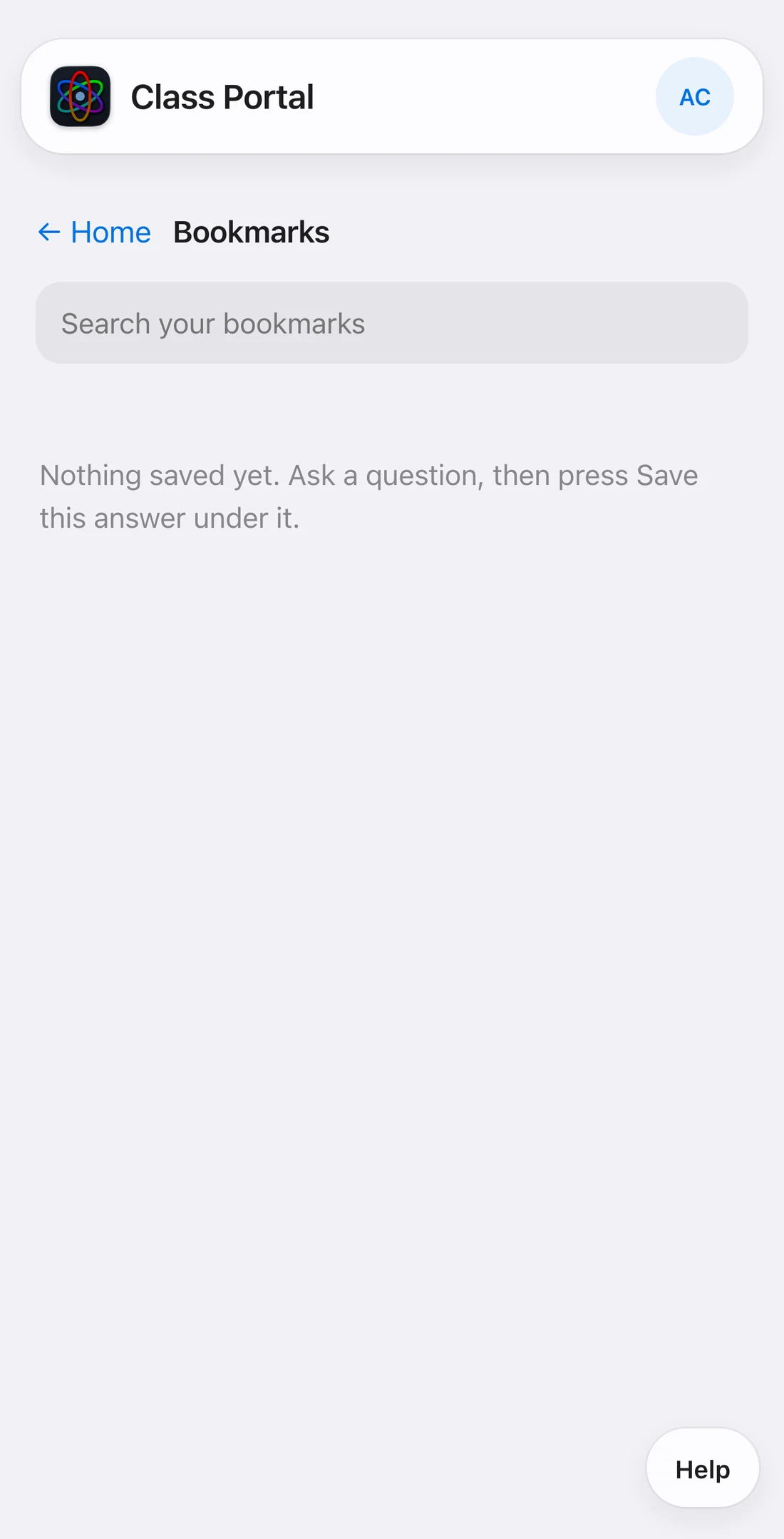
Bookmarks

Bookmarks

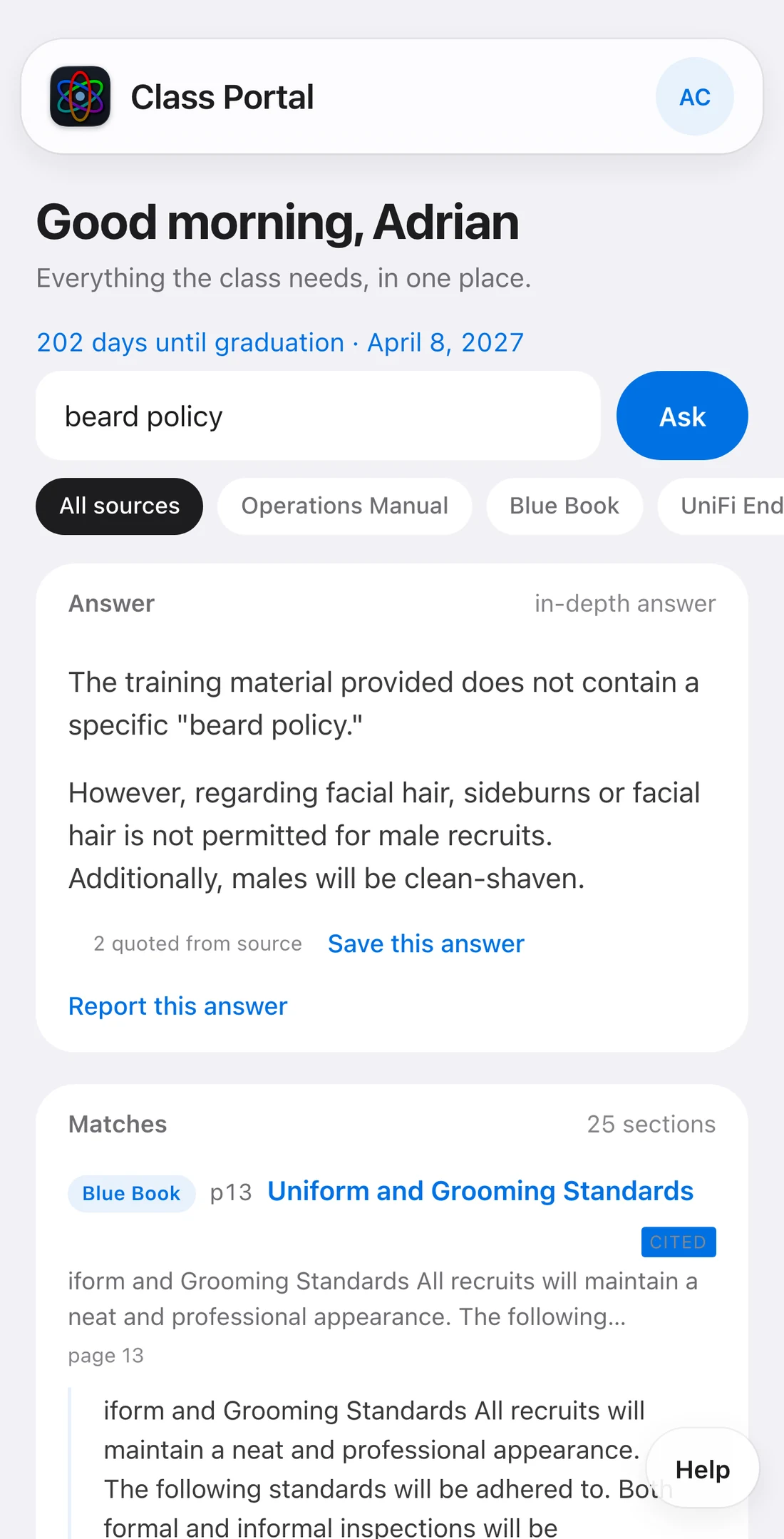
Answers you chose to keep. Ask a question, then tap Save this answer under it; it is filed here with the question, the answer and the sections it came from.

  • The search box finds a saved answer by any word in it.
  • Tap one to read it in full; remove it when it is no longer useful.
  • Bookmarks are yours alone.
9:41
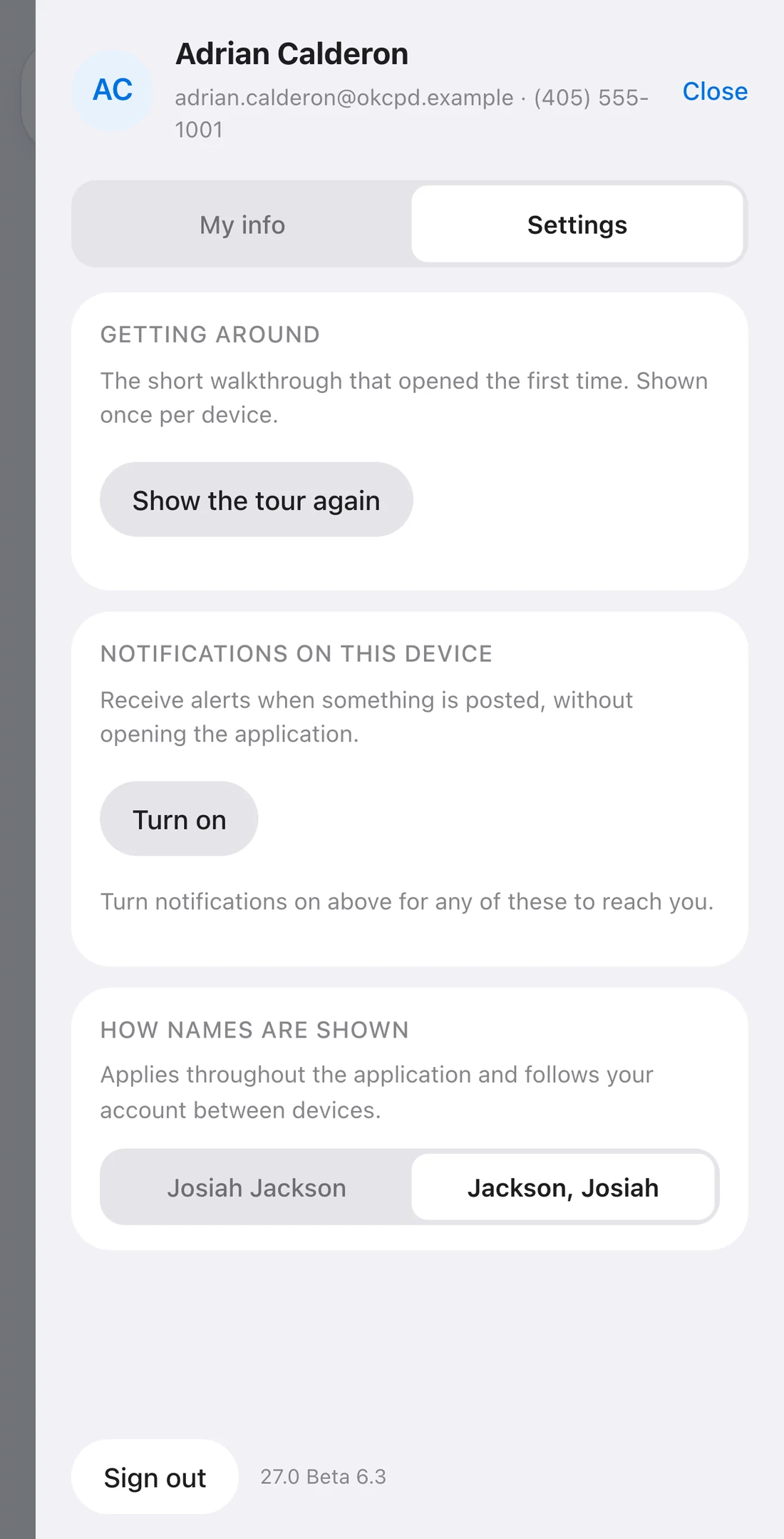
The account panel, My info

Your account

Tap your initials in the top-right corner. Two tabs.

My info

  • Photo, department email and the roster fields described under Class roster.
  • Locker. Your locker number and combination, for you alone. Nobody else, staff included, can see them. Tap Show to reveal the combination.

Settings

  • Getting around. Shows the short tour again.
  • Notifications on this device, and which kinds you want. See the next chapter.
  • How names are shown. First name first, or last name first, everywhere in the app.
  • Calendar link. Replace your private subscription link if it has been shared by mistake.
  • Sign out at the bottom. The version number sits beside it, which is worth quoting in a Help report.
9:41
Notifications on this device

Notifications

Announcements and assignments reach your phone the moment they are posted, without opening the app. It is how the class commander reaches everyone at once.

  1. Open Class Portal from your Home Screen. On iPhone, Safari in a tab cannot deliver notifications; only the Home Screen app can.
  2. Tap your initials, then Settings.
  3. Under Notifications on this device, tap Turn on, then Allow when your phone asks.
  • Notifications are per device. Turn them on for each phone you use.
  • Below the switch you choose which other kinds you want. Announcements and assignments are always on and say so.
  • Tapping a notification opens the post or assignment it is about.
  • If your phone has blocked notifications for the app, the panel says so; turn them back on in your phone's Settings and reopen the app.
9:41
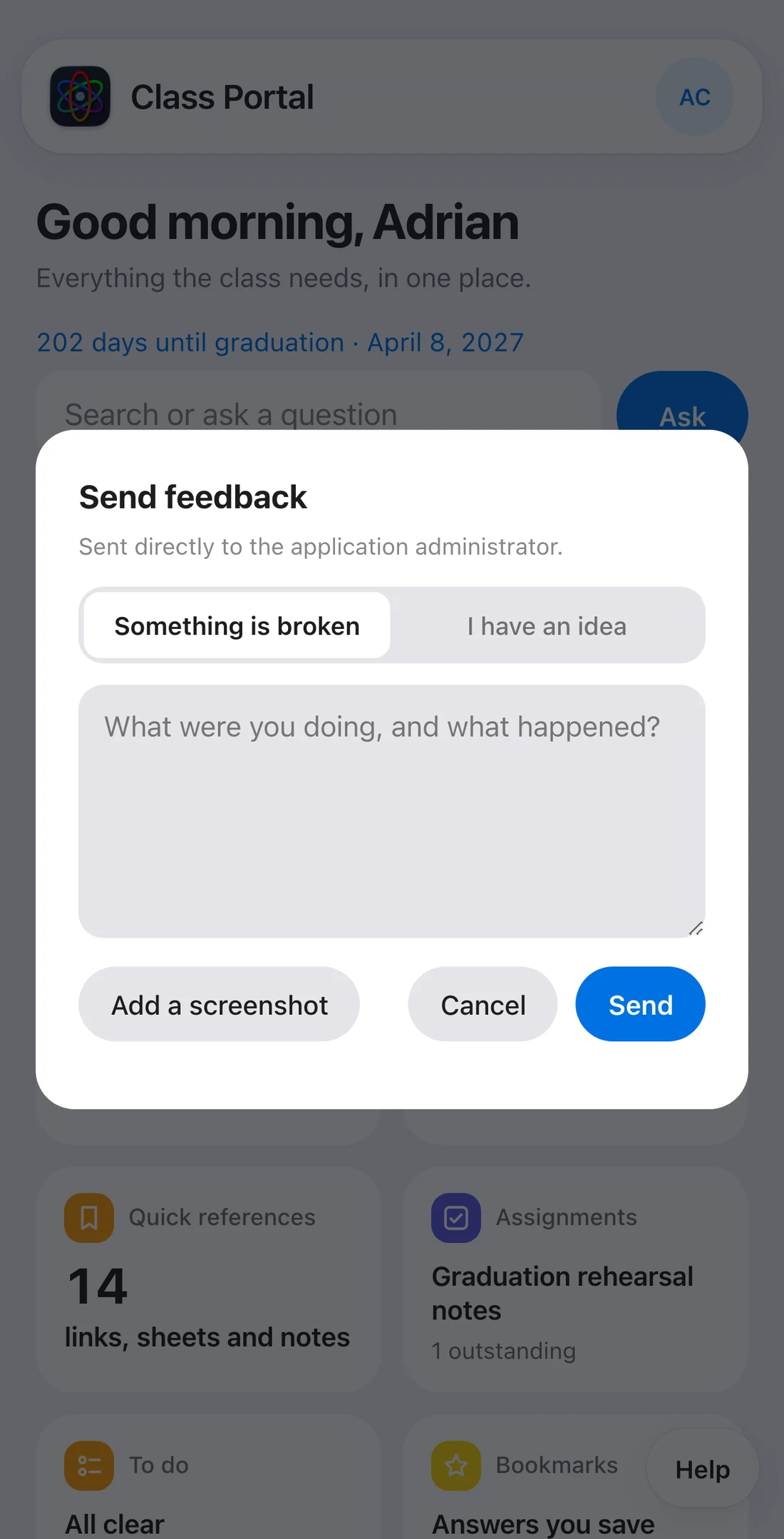
The Send feedback sheet

Help

The button in the bottom-right corner of every screen, and the most important one in the app. Class Portal is being built for this class while the class uses it; Help is how it gets better.

  1. Tap Help.
  2. Choose Something is broken or I have an idea.
  3. Say what you were doing and what happened. One sentence is enough.
  4. Add a screenshot if there is anything to see. Tap Send.

It goes directly to the administrator, with the screen you were on and the version you are running, and lands in a queue that is worked through every day. A wrong answer from Search has its own button, Report this answer, which also sends the sections the answer was built from.

Send it for anything. Nothing is too small.

Privacy and good practice

  • Invite only. Every account is activated with a one-time code matched to the roster. There is no public sign-up.
  • You control your card. What the class sees of your details is your choice, enforced on the server.
  • A human approves. Nothing the AI reads from a photo or a document reaches the class until an admin has checked it.
  • Backed up nightly. Every record and every uploaded file, every night.
  • Verify. Class Portal is not an official departmental tool and is not associated with any police department or training academy. Every answer shows the section it came from; check the page before you rely on it.